You've got a great group photo you want to share, but not everyone in it is comfortable having their face posted publicly — a coworker who avoids social media, a friend's kid, someone who just prefers to stay out of it. Cropping them out isn't always possible without ruining the photo. Blurring just their face is usually the better fix, and it takes about as long as cropping would.
Why selective blurring beats cropping
Cropping a group photo to remove one person often means losing part of the composition, or cutting other people awkwardly at the edge of the frame. Blurring a specific face keeps the whole photo intact — everyone's still in the shot, the moment is preserved, and only the one detail that needed privacy is handled.
How to blur only the faces that need it
Magic Privacy Blur is a paint-over-it tool — you brush over whichever face (or faces) you want hidden, and leave everyone else untouched. There's no detection step to wait on or second-guess: in a group of six, you can cover just one person's face in a couple of seconds while the other five stay exactly as they were. It runs entirely in your browser, so the photo isn't sent anywhere in the process.
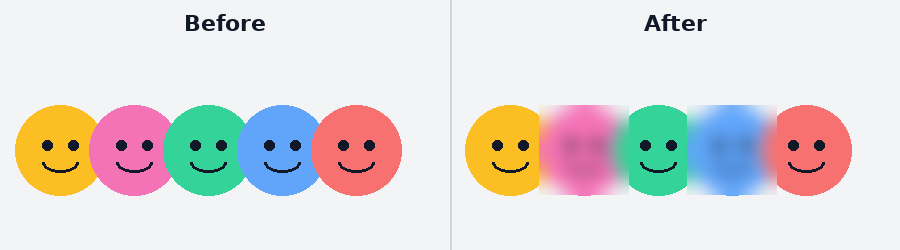
Illustrative mockup, not real people — only the faces you brush over get blurred, the rest stay untouched.
→ Blur specific faces with the free Magic Privacy Blur — runs in your browser, nothing is uploaded.Step-by-step
- Open the tool. Go to Magic Privacy Blur and upload the group photo.
- Paint over each face you want hidden with the brush, leaving everyone else's face alone.
- Click Apply Blur. Gaussian Blur or Pixelate Mosaic both work well for faces.
- Download the result and post it with confidence.
Getting clean coverage on the first try
Use a slightly larger brush and paint a little past the edge of the face rather than right up to the hairline — a small margin means no sliver of a jaw or ear peeks out. This works the same regardless of angle, since you're marking the face yourself: a profile view, a face turned away from the camera, or someone half-hidden behind another person is just as easy to cover as one shot straight-on.
Frequently asked questions
Can I blur just one or two faces and leave the rest of the photo untouched?
Yes. Magic Privacy Blur doesn't auto-detect faces — you paint over only the ones you want hidden, so the rest of the photo stays exactly as it was.
Will it work on faces that are turned to the side or partly obscured?
Yes, since nothing is auto-detected there's nothing to miss — you're painting over whatever you can see, at any angle, so a profile view or a partly hidden face is just as easy to cover.
Does blurring a face still let you tell it's a person in the photo?
Yes — a blur obscures identity while keeping the rest of the photo, including that person's presence and pose, visible. It's a softer choice than cropping someone out entirely.
Is this free to use?
Yes — no account, no upload, no watermark.
Also need to hide a license plate in the background of a photo? Our guide to blurring plates before selling a car covers using the same brush tool on plates instead of faces.
Got a group photo ready to share? Blur the faces that need it with Magic Privacy Blur before you post.